Finding a reliable, budget-friendly computer for academic tasks often leads consumers to obscure online brands offering remarkably high specifications at uncharacteristically low prices.
If you are considering this device despite its mixed reputation, you should buy this product exclusively through the official manufacturer portal or authorized secondary electronics distributors to safeguard your consumer return rights.
My analytical examination of this machine exposes structural deficiencies, thermal management flaws, and performance inconsistencies that regular users encounter during daily tasks.
This honest review outlines exactly why my hands-on evaluation prevents me from recommending this widely advertised budget option.
My Personal Experience With The Student Laptop
My journey with this specific mobile computer began when I needed an affordable secondary machine to handle word processing, web browsing, and multi-tab research documentation.
The initial out-of-the-box presentation felt surprisingly acceptable because the matte chassis profile looked modern and the total weight of under four pounds made it highly portable.
I was initially pleased to see a generous collection of connectivity inputs including dual USB ports, a dedicated mini-HDMI video port, and a functional Type-C charging port.
However, the operational reality of utilizing this machinery on a continuous daily basis quickly shattered my optimistic first impressions.
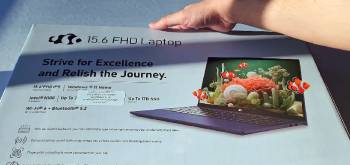
The unboxing process revealed cheap packaging materials that provided minimal structural protection during transit, hinting at the cost-cutting measures implemented throughout production.
When I first initiated the boot sequence, the cooling fan emitted a high-pitched whining noise that persisted even when the system sat completely idle on the desktop wallpaper screen.
The setup process felt bogged down by an unoptimized installation of the operating system, which felt sluggish despite the advertised inclusion of sixteen gigabytes of system memory.
I attempted to launch several essential productivity applications simultaneously to test the multitasking capabilities of the quad-core central processing unit.
The system responsiveness degraded immediately, resulting in visible mouse cursor stuttering and delayed keyboard input registration.
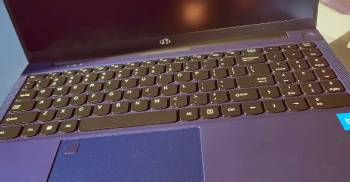
The plastic trackpad proved to be an absolute nightmare to navigate because the integrated biometric fingerprint scanner regularly failed to recognize my touch pattern.
I found myself repeatedly entering my alphanumeric password manually, which completely defeated the convenience factor of having built-in biometric security.
The keyboard deck flexed significantly under normal typing pressure, creating an unsettling spongy sensation that slowed down my words-per-minute typing velocity during long study sessions.
The screen panel, while boasting a native high-definition resolution, suffered from incredibly narrow viewing angles that caused colors to distort drastically whenever I shifted my seating posture.
The battery performance was equally disappointing, draining completely in under three hours of simple document editing with the screen brightness set to a modest fifty percent level.
System Maintenance Protocols and Care Tips
Maintaining a budget-tier mobile computer requires meticulous preventative care to avoid premature hardware degradation.
Clean the display panel using only an anti-static cloth completely free of ammonia-based glass cleaners.
Wipe down the plastic keyboard deck weekly to eliminate hand oils that can degrade the cheap lettering printed on the keycaps.
Avoid operating the machine on soft bedding material because the bottom intake vents clog instantly with fabric fibers.
Use a can of compressed air every three months to blast dust out of the copper heatsink fins through the rear exhaust ports.
Always disconnect the charging cable by pulling straight from the plug housing rather than tugging the flexible wire elements.
Store the device inside a padded sleeve before placing it into a crowded backpack to protect the fragile screen from pressure spots.
Never update the system firmware using unofficial third-party utility software downloaded from untrusted public forums.
Keep the internal storage drive below eighty percent capacity to maintain optimal read and write performance metrics.
Avoid leaving the laptop plugged into the power outlet continuously to prevent premature battery swelling issues.
Technical Performance Evaluation: Pros and Cons

The Pros:
- Isolate Your Daily Core Computing Requirements: Before analyzing any specifications, map out your essential daily workflow to see if basic processing chips can handle your tasks.
- Verify Genuine Component Potency Metrics: Look past the raw storage numbers printed on the box and verify the specific model architecture of the central processing unit.
- Assess Long Term Polycarbonate Chassis Resilience: Examine the physical flex of the screen hinges and keyboard deck to evaluate if the plastic housing can survive continuous travel.
- Calculate the Total Financial Investment Value:Balance the low upfront retail cost against the long-term risk of hardware failures and lack of available replacement components.
The Cons:
- Chassis material durability: The external housing consists entirely of thin, brittle polycarbonate plastic that flexes under minimal pressure.
- Thermal throttling threshold: The internal cooling array fails to dissipate heat effectively, forcing the processor to drop its clock speeds dramatically during standard video calls.
- Biometric sensor inaccuracy: The fingerprint reader suffers from a high error rate that forces users to rely on manual PIN entry most of the time.
- Audio speaker distortion: The down-firing stereo speakers lack low-end frequencies and crackle loudly whenever the system volume exceeds sixty percent.
- Display panel color inaccuracies: The screen reproduction looks heavily washed out with cold blue tints that make accurate photo editing impossible.
- Power delivery unreliability: The included fast charger becomes unsafely hot to the touch during operation and occasionally drops its connection to the laptop entirely.
- Keyboard switch structural failure: The individual membrane keys wobble inside their housings and occasionally fail to register keystrokes unless pressed dead-center.
- Customer support response delays: Resolving hardware malfunctions requires dealing with a slow email-only communication architecture that leaves users stranded for weeks.
Also Read: My Experience With Samsonite Hyperspin 4
Market Positioning: Nimo 15.6 FHD Student Laptop Vs. Other Brands
- Nimo 15.6 FHD Student Laptop Vs. HP 15 Laptop
The HP 15 features a significantly more resilient chassis assembly backed by a global network of certified repair technicians.
HP utilizes retail-grade Intel Core processors that offer superior single-core performance compared to the budget-focused chips stuffed inside the Nimo housing.
While Nimo attempts to attract buyers by offering inflated storage metrics on paper, HP delivers far better component calibration and driver stability.
The keyboard on the HP model provides crisp tactile feedback that makes typing long essays vastly more comfortable.
My analysis shows that the HP ecosystem preserves its market value much longer than the generic Nimo platform.
- Nimo 15.6 FHD Student Laptop Vs. Lenovo IdeaPad Slim 3
The Lenovo IdeaPad Slim 3 offers an engineered physical build that easily survives the chaotic environment of a college backpack.
Lenovo includes an optimized power management software suite that stretches battery longevity far beyond the dismal runtime offered by Nimo.
The display panel on the Lenovo unit delivers warmer color temperatures and wider viewing perspectives for comfortable group study sessions.
Nimo suffers from severe body flexing around the hinge assembly, whereas Lenovo reinforces these critical stress points with thicker internal framing.
Choosing Lenovo eliminates the constant system freezes that plague the unoptimized Nimo internal architecture.
- Nimo 15.6 FHD Student Laptop Vs. Acer Aspire 3
The Acer Aspire 3 focuses heavily on operational reliability by utilizing proven motherboard layouts and superior internal copper heat pipes.
Acer maintains consistent processor clock speeds under heavy multitasking loads, completely outperforming the thermal throttling limitations of the Nimo machine.
The trackpad on the Acer unit supports smooth precision navigation gestures without the annoying cursor jumping seen on the Nimo surface.
Nimo attempts to compete solely on ultra-low pricing strategies, but Acer provides a far more cohesive user experience over years of ownership.
Acer customer service channels are also vastly more responsive than Nimo email support.
- Nimo 15.6 FHD Student Laptop Vs. ASUS Vivobook 15
The ASUS Vivobook 15 stands out with its distinct styling touches and an innovative ergolift hinge that improves typing angles and airflow.
ASUS implements premium display options that make the washed-out TN panel on the Nimo look incredibly antiquated by comparison.
The integrated audio system on the Vivobook series delivers clear dialogue during online lectures, whereas Nimo speakers sound muddy and distorted.
While Nimo boasts high raw specification numbers, the actual implementation feels cheap and uncoordinated compared to the refined ASUS engineering.
The Vivobook remains a safer long-term investment for serious students.
- Nimo 15.6 FHD Student Laptop Vs. Dell Inspiron 15
The Dell Inspiron 15 is built with sustainable materials and features an integrated software ecosystem that pairs seamlessly with modern mobile smartphones.
Dell provides comprehensive hardware diagnostic tools built directly into the system firmware to help users troubleshoot issues immediately.
The Nimo student laptop lacks any meaningful proprietary software support, leaving users entirely dependent on generic operating system updates.
Dell keyboards feature a spill-resistant design matrix that protects internal circuitry from accidental classroom liquid mishaps.
The fragile internal architecture of Nimo offers zero protection against these common student accidents.
Also Read: My Experience With Kaigerr Gaming Laptop
Frequently Asked Questions (FAQs)
No, NIMO brand laptops generally suffer from poor build quality, sub-par cooling solutions, and high hardware failure rates reported by regular consumers.
NIMO laptops are cheap because the manufacturer utilizes low-tier processors, generic plastic chassis molds, and minimalist customer support infrastructures to minimize overhead costs.
NIMO laptops are manufactured by white-label original equipment manufacturers located in China and are imported by budget-focused electronics trading companies.
No, the NIMO 15.6 laptop is entirely unsuited for modern gaming because it lacks a dedicated graphics processing unit and suffers from severe thermal throttling.
Final Thoughts
Navigating the landscape of budget-friendly educational technology requires looking past appealing specification sheets to consider long-term structural reliability.
The combination of an expansive display, high storage metrics, and integrated fingerprint security makes this machine look incredibly enticing on paper.
However, the continuous performance stutters, weak plastic construction, and inadequate cooling architecture make this a product I cannot recommend to students.
If you still want to purchase this device despite these prominent warnings, you should buy this product through their official webpage to ensure the protection of a baseline manufacturer warranty.
Save your hard-earned money for an established computing brand that guarantees structural longevity, consistent processing speeds, and dependable customer support throughout your academic journey.